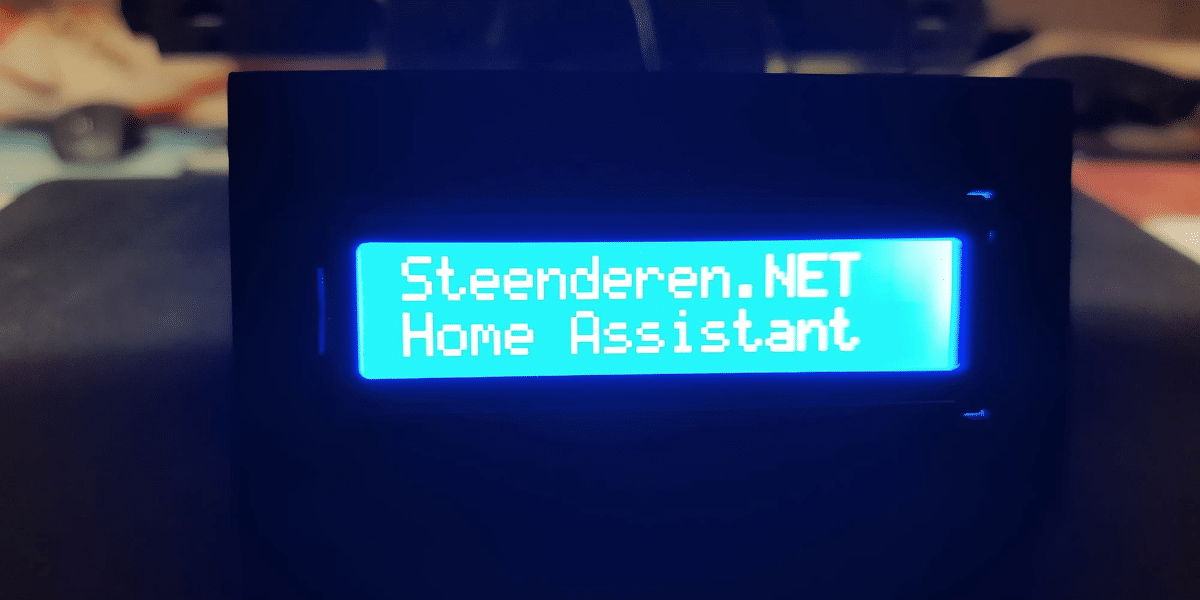
De originele post van dit project is alweer ruim 4 jaar oud. Hierin vind je nog steeds alle uitleg m.b.t. hoe dit display te bouwen. De gebruikte code heb ik inmiddels wel volledig aangepast. Aanleiding hiervoor waren aanpassingen in ESPHome zelf, maar ik wilde de werking ook meer autonoom maken; meer afhandeling van de werking op de gebruikte D1 Mini zelf en minder aan de hand van automatiseringen in Home Assistant. De nieuwe volgt ook de eerder beschreven standaard code opbouw.
Om te beginnen dus de nieuwe versie van mijn code;
ESPHome code
esphome:
  name: "lcd-notification-display"
  friendly_name: "LCD notificatie display"

esp8266:
  board: d1_mini
  restore_from_flash: true

# Write to flash for setting restore after power cycle
# Only per 600s = 10 minutes to reduce flash degradation
preferences:
  flash_write_interval: 600s

# Enable logging
logger:
  logs:
    component: ERROR # Avoiding non stop slow component error messages in logging.

# Enable Home Assistant API
api:
  encryption:
    key: "..."

# Enable over-the-air updates
ota:
  - platform: esphome
    password: "..."

wifi:
  ssid: !secret wifi_ssid
  password: !secret wifi_password
  min_auth_mode: wpa2
  fast_connect: true

  # Enable fallback hotspot (captive portal) in case wifi connection fails
  ap:
    ssid: "LCD display Fallback Hotspot"
    password: "xVFddY9anmdY"

  # On wifi connection show notification with IP address on LCD
  on_connect:
    then:
      - text.set:
          id: current_text
          value: "Wifi connected  with IP address"
      - delay: 3s
      - text.set:
          id: current_text
          value: !lambda "return id(wifi_ip).state ;"

captive_portal:

text_sensor:
  # Wifi text sensors
  - platform: wifi_info
    ip_address:
      id: wifi_ip
      name: "Wifi IP"
      icon: mdi:ip-network-outline
    mac_address:
      id: wifi_mac
      name: "Wifi mac"
      icon: mdi:network-outline
    ssid:
      id: wifi_ssid
      name: "Wifi SSID"
      icon: mdi:access-point-network
    bssid:
      id: wifi_connected
      name: "Wifi AP mac"
      icon: mdi:access-point-network

text:
  # Text field to enter text that is to be shown on the LCD
  - platform: template
    id: text_to_display
    name: "Text to display"
    optimistic: true
    min_length: 0
    max_length: 32
    mode: text
    # When new text is entered, push to current_text (which value is actually shown on LCD)
    on_value:
      then:
        - text.set:
            id: current_text
            value: !lambda "return id(text_to_display).state ;"

  # Internal (unvisable) text field, which value is actually shown on LCD
  - platform: template
    id: current_text
    name: "current_text"
    optimistic: true
    min_length: 0
    max_length: 32
    mode: text
    initial_value: "\x08 Starting up..."
    internal: true
    # When new value is set, handling of background light is handled. If text was cleared (value = "") then the background light
    # is switched off. If text was entered, based on the setting "Action on next text" the background is switched on is blinked
    on_value:
      - lambda: |-
          std::string txt_to_display = id(text_to_display).state;
          std::string current_txt = id(current_text).state;
          std::string selected_action = id(action_on_new_text).current_option();

          // Check if current_txt was cleared (value = "")
          if (strcmp(current_txt.c_str(), "") == 0) {

            // Check if the selected action on new text not equal to "Off (do everything manual)"
            if (strcmp(selected_action.c_str(), "Off (do everything manual") != 0) {
              // Turn off both switchs for blink & light
              id(background_blink).turn_off();
              id(background_light).turn_off();
            }

          // If text was entered in current_txt
          } else {

            // Check if text in field "Text to display" is equal to current_text
            // This is only not the case during boot sequence to show e.g. IP address when connected to wifi
            if (strcmp(txt_to_display.c_str(), current_txt.c_str()) == 0) {

              // Check if the selected action on new text not equal to "Blink background"
              if (strcmp(selected_action.c_str(), "Blink background") == 0) {
                id(background_blink).turn_on();

              // Check if the selected action on new text not equal to "Light background"
              } else if (strcmp(selected_action.c_str(), "Light background") == 0) {
                id(background_light).turn_on();
              }
            }
          }

sensor:
  # Wifi signal strength in db
  - platform: wifi_signal
    id: wifi_signal_db
    name: "Wifi signal"
    icon: mdi:wifi
    update_interval: 300s

  # Wifi signal strength in %
  - platform: copy
    source_id: wifi_signal_db
    name: "Wifi signal strength"
    icon: mdi:wifi-strength-2
    filters:
      - lambda: return min(max(2 * (x + 100.0), 0.0), 100.0);
    unit_of_measurement: "%"

  # System uptime sensor
  - platform: uptime
    id: system_uptime
    name: "System uptime"
    icon: mdi:timer-outline
    update_interval: 300s

# Enable webserver
web_server:
  port: 80

# Enable sensor monitor connection to Home Assistant.
binary_sensor:
  # System connection to Home Assistant sensor
  - platform: status
    name: "System status"
    icon: mdi:check-network-outline

  # On Home Assistant connection show notification with IP address on LCD
    on_state:
        then:
          - delay: 6s
          - text.set:
              id: current_text
              value: "Home Assistant  connected"
          - delay: 3s
          - lambda: |-
              id(mydisplay).no_backlight();
          - text.set:
              id: text_to_display
              value: ""

switch:
  # Switch to enable restart from Home Assistant
  - platform: restart
    name: "System restart"
    icon: mdi:restart

  # Switch to enable restart in Safe Mode from Home Assistant
  - platform: safe_mode
    name: "System restart in safe mode"
    icon: mdi:lifebuoy

  # Switch for switching on background light (without blinking first).
  - platform: template
    id: background_light
    name: "Background light"
    icon: mdi:led-variant-on
    optimistic: true
    turn_on_action:
      # Switch for background blinking is switched off (so only one switch can be on at the same time)
      - switch.turn_off: background_blink
      - delay: 0.75s
      # Turn on background light of LCD
      - lambda: |-
          id(mydisplay).backlight();
      # Wait for number of seconds (*1000 for ms) as set in "Background off delay"
      - delay: !lambda "return id(background_off_delay).state * 1000 ;"
      # If selected "Action on new text" is NOT equal to "Off (do everything manual)"
      # turn off the background light and clean/empty the Text to display field.
      - lambda: |-
          std::string selected_action = id(action_on_new_text).current_option();
          if (strcmp(selected_action.c_str(), "Off (do everything manual") != 0) {
            id(mydisplay).no_backlight();
            id(background_light).turn_off();
            auto call = id(text_to_display).make_call();
            call.set_value("");
            call.perform();
          }
    turn_off_action:
      # Switch off background light when switched is turned off
      - lambda: |-
          id(mydisplay).no_backlight();

  - platform: template
    id: background_blink
    name: "Background blink"
    icon: mdi:led-on
    optimistic: true
    turn_on_action:
      # Switch for background light is switched off (so only one switch can be on at the same time)
      - switch.turn_off: background_light
      - delay: 0.75s
      # Turn the background light of LCD on and off three times (blink) and then keep it on
      - lambda: |-
          id(mydisplay).backlight();
      - delay: 0.75s
      - lambda: |-
          id(mydisplay).no_backlight();
      - delay: 0.75s
      - lambda: |-
          id(mydisplay).backlight();
      - delay: 0.75s
      - lambda: |-
          id(mydisplay).no_backlight();
      - delay: 0.75s
      - lambda: |-
          id(mydisplay).backlight();
      # Wait for number of seconds (*1000 for ms) as set in "Background off delay"
      - delay: !lambda "return id(background_off_delay).state * 1000 ;"  # in ms
      # If selected "Action on new text" is NOT equal to "Off (do everything manual)"
      # turn off the background light and clean/empty the Text to display field.
      - lambda: |-
          std::string selected_action = id(action_on_new_text).current_option();
          if (strcmp(selected_action.c_str(), "Off (do everything manual") != 0) {
            id(mydisplay).no_backlight();
            id(background_blink).turn_off();
            auto call = id(text_to_display).make_call();
            call.set_value("");
            call.perform();
          }
    turn_off_action:
      # Switch off background light when switched is turned off
      - lambda: |-
            id(mydisplay).no_backlight();

select:
  # Select for presetting the behaviour of the background light
  - platform: template
    id: action_on_new_text
    name: "Action on new text"
    restore_value: true
    optimistic: true
    options:
      - "Off (do everything manual)"
      - "Blink background"
      - "Light background"

number:
  # Number for presetting the delay after which the background light is switched off automatically
  - platform: template
    id: background_off_delay
    name: "Background off delay"
    unit_of_measurement: s
    device_class: duration
    min_value: 20
    max_value: 300
    step: 5
    optimistic: true
    restore_value: true

i2c:
  sda: D4
  scl: D3

display:
  - platform: lcd_pcf8574
    id: mydisplay
    dimensions: 16x2
    address: 0x27
    user_characters:
      - position: 0
        data:
          - 0b00100
          - 0b01010
          - 0b10001
          - 0b10001
          - 0b10001
          - 0b10001
          - 0b11011
          - 0b10101
    lambda: |-
      if (id(current_text).state != "") {
        it.print(0, 0, id(current_text).state.c_str());
      }
Bediening en sensoren in Home Assistant
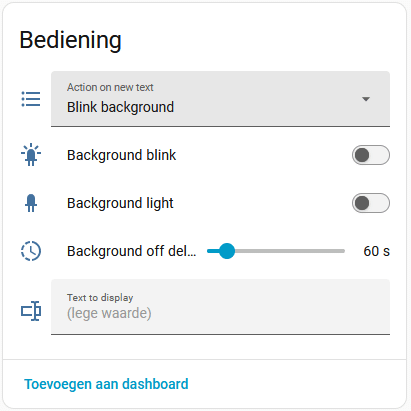
Voor het gebruik van de display zijn dit de instelmogelijkheden;
Action on new text
Hiermee stel je in welke actie moet volgen als er een nieuwe tekst is ingevoerd in het Text to display veld. M.a.w. wat moet er nog meer gebeuren dan alleen de tekst weergeven. De volgende opties zijn beschikbaar;
- Off (do everything manual)
Er wordt geen aanvullende actie uitgevoerd, handmatig (of via een automatisering) kan je verder zelf het gedrag bepalen. - Blink background
De achtergrond knippert 2 keer en blijft vervolgens branden voor de tijdsduur van de ingestelde delay. - Light background
De achtergrondverlichting wordt aangezet en blijft branden voor de tijdsduur van de ingestelde delay.
Background blink
Schakelaar voor het handmatig starten of stoppen van de actie om de achtergrond 2 keer te laten knipperen en vervolgens te laten branden. Wanneer deze schakelaar wordt aangezet als de Background light schakelaar is ingeschakeld, wordt de Background light schakelaar automatisch uitgeschakeld. Slechts één van de twee kan aanstaan.
Deze schakelaar wordt automatisch ingeschakeld wanneer Action on new text op Blink background staat ingesteld, en er nieuwe text wordt gepubliceerd in het veld Text to display. Automatisch uitschakelen gebeurd op basis van de Background off delay instelling.
Background light
Schakelaar voor het handmatig starten of stoppen van de actie om de achtergrondverlichting te laten branden (zonder knipper). Wanneer deze schakelaar wordt aangezet als de Background blink schakelaar is ingeschakeld, wordt de Background blink schakelaar automatisch uitgeschakeld. Slechts één van de twee kan aanstaan.
Deze schakelaar wordt automatisch ingeschakeld wanneer Action on new text op Light background staat ingesteld, en er nieuwe text wordt gepubliceerd in het veld Text to display. Automatisch uitschakelen gebeurd op basis van de Background off delay instelling.
Background off delay
Met deze waarde wordt ingesteld na hoeveel seconden de achtergrondverlichting moet worden uitgeschakeld en het display moet worden gewist als Action on new text niet staat ingesteld op Off (do everything manual). Ik heb deze zelf ingesteld staan op 60 seconden.
Text to display
Text-veld waarin de tekst geplaatst / gepubliceerd kan worden die moet worden weergegeven op het display. Hierbij geldt nog steeds dat de tekst doorloopt over de twee regels (of meer regels als je een groter display gebruikt!). Je zal dus wat moeten spelen met hoe een woord op een volgende regel uitkomt en niet halverwege het woord doorgaat op de volgende regel. Dit is eenvoudig op te lossen door extra voorloop spaties te gebruiken voor een woord. Maar dat vraag dus wel een klein beetje uitdokteren.